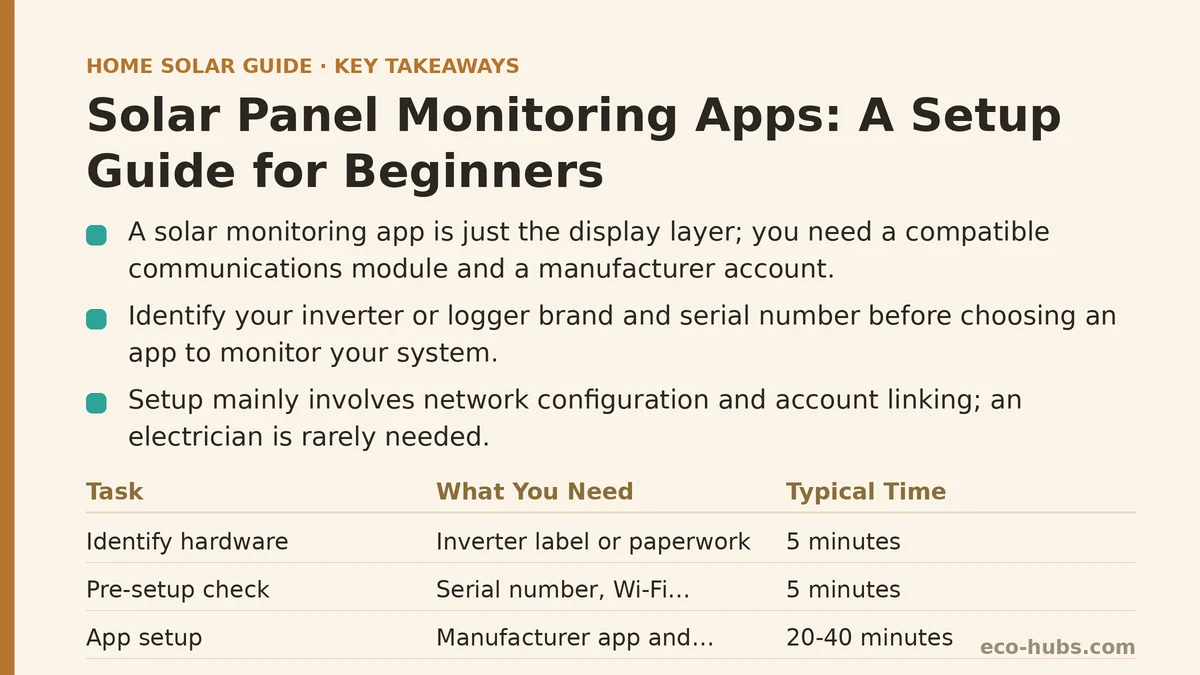
A common misconception is that a solar monitoring app is a single universal piece of software you download and point at your panels. In practice, the app is only the display layer on top of hardware that was installed with your system — usually an inverter-embedded communications module or a separate data logger wired into the inverter. Without a compatible communications unit and a valid account on the manufacturer’s platform, the app has nothing to read. The setup process is therefore less about the app and more about identifying which communications hardware you have, confirming it is connected to your home network, and linking it to an account you control.

Myth vs. Reality: The App Is the System
The myth: monitoring is a purely software choice, and any app can read any system.
The reality: most residential systems expose data through the inverter or a dedicated logger, and each manufacturer runs its own cloud platform. A SolarEdge system reports through SolarEdge’s monitoring, an Enphase system through Enphase’s platform, a string inverter from another brand through that brand’s portal. Third-party tools like Home Assistant or open-source dashboards can pull data in, but they typically rely on the manufacturer’s API or a local integration, not on magic.
What this means for setup: the first task is not “pick an app” but “identify what hardware is already on your roof and wall.” Check your installation paperwork or the inverter label for the brand and model. If you are still evaluating installers, this is a reasonable question to ask before signing, since monitoring capability and data access terms vary between platforms.
Myth vs. Reality: Setup Requires an Electrician
The myth: connecting monitoring is electrical work and needs a technician on site.
The reality: the physical communications hardware is installed with the system, and the remaining setup is almost entirely network configuration and account linking. You may need an installer only if the communications module was never commissioned, is faulty, or needs a firmware update that requires vendor access.
That said, network configuration is where most beginners stall. Below are the common steps, though exact menus differ by brand.
What you need before you start
- The inverter or logger serial number — usually on a sticker on the unit and in your handover documents.
- Login credentials for the manufacturer’s monitoring portal, or the ability to create an account and register the system to it. Many installers register the system under their own account first and then transfer ownership to the homeowner; ask for this transfer explicitly if it has not happened.
- Your home Wi-Fi name and password, if the communications unit uses Wi-Fi rather than a wired Ethernet connection or a cellular module.
- A phone or laptop on the same network for the initial pairing step, in most cases.
- About 20–40 minutes, plus patience for firmware updates that can take longer.
The typical sequence
- Confirm the communications unit is powered and its status LED shows a connected state (the meaning of each LED color is in the inverter manual).
- Open the manufacturer’s app and either log in or create an account.
- Register the system using the serial number, or accept an ownership transfer from the installer.
- Connect the unit to your home network — via app-guided Wi-Fi pairing, an Ethernet cable, or a cellular SIM that is already active.
- Wait for the first data sync, which commonly takes from a few minutes up to a few hours depending on the platform’s reporting interval.
- Verify that today’s production, lifetime production, and system status all display correctly.
If the app shows the system but no production, the usual cause is that the system is not yet energized, the CT clamps or metering are misconfigured, or the reporting interval has not elapsed. If the app shows nothing at all, the account registration or network connection is the likely culprit.
Myth vs. Reality: More Data Equals Better Decisions
The myth: the more granular the monitoring, the better you will manage your system.
The reality: monitoring helps you spot problems and understand consumption patterns, but resolution beyond a point adds noise rather than insight. A system reporting every five minutes generates thousands of data points a day; most homeowners need daily and monthly totals, plus alerts for underperformance.
What the tiers of monitoring commonly look like:
| Monitoring level | What it shows | Typical use | Practical value for a beginner |
|---|---|---|---|
| Inverter-level only | Total system production | Basic output tracking, warranty records | Good starting point; catches whole-system outages |
| Per-string or per-MPPT | Production by panel group | Diagnosing shading or a failed string | Useful if your roof has multiple orientations |
| Per-panel (module-level electronics) | Output of each panel | Pinpointing a single underperforming panel | Helpful on complex roofs; more data to interpret |
| Consumption monitoring (CT clamps) | Home usage alongside production | Understanding self-consumption and export | Valuable if you are weighing battery storage or time-of-use rates |
If you have only inverter-level data, that is not a deficiency — it covers the majority of real-world troubleshooting needs. Add consumption monitoring later if your goals shift toward battery sizing or tariff optimization.
Myth vs. Reality: A Low Number Means Something Is Broken
The myth: if today’s production is lower than yesterday’s, something has failed.
The reality: production varies with weather, season, shading, soiling, and temperature. A cloudy day can cut output by half or more; panel temperatures well above 25°C reduce efficiency even in bright sun; and a tree that leafs out in spring can quietly shade an array that performed well in winter.
A practical way to judge whether a dip is normal:
- Compare to a nearby system on the same platform, or to the same week in the previous year, rather than to yesterday.
- Check the alert log before assuming hardware failure — most platforms flag communication loss, ground faults, and inverter errors explicitly.
- Look for step changes, not gradual ones. A sudden drop on one string or one panel is a stronger signal than a gradual seasonal decline.
- Confirm the reporting interval. Some platforms report in 15-minute blocks, so a partially elapsed day can look artificially low until the day closes.
If an alert fires or a step change persists for several days of clear weather, contact your installer with the specific dates and readings rather than waiting for the next service visit.
Myth vs. Reality: The Installer’s Account Is Fine Forever
The myth: as long as someone can see the data, ownership of the monitoring account does not matter.
The reality: account ownership affects your access to historical data, warranty claims, and the ability to change settings or add equipment. Some installers register systems under company accounts for convenience and transfer later; others leave it that way indefinitely. If you sell the home, a buyer may want the monitoring history, and that history typically lives with the account.
Ask for confirmation that the system is registered under an account you can log into directly, and keep the serial numbers and portal credentials with your home documents. If the installer is unresponsive, manufacturer support can often assist with an ownership transfer using proof of purchase.
Common Setup Mistakes and How to Recover
- Wrong serial number entered. The system registers but shows no data. Re-check the label against the handover documents and correct the registration.
- Wi-Fi password changed after installation. The communications unit drops offline. Re-run the pairing step with the current credentials, or move to a wired connection if the signal is weak.
- Two accounts claiming the same system. Registration fails or data appears under someone else’s login. Ownership transfer through manufacturer support resolves this.
- Firmware update interrupted. The app shows the device as offline for an extended period. Power-cycle the communications unit once, then contact support if it does not reconnect.
- Consumption readings inverted. CT clamps installed backwards produce negative or implausible usage figures. This is a physical fix — your installer needs to correct the clamp orientation.
What to Do Next
Today, before downloading anything, locate your inverter or logger serial number and check whether the monitoring system is already registered to an account you control. If it is not, request an ownership transfer from your installer in writing. Once you can log in, spend two weeks recording daily production and, if available, consumption, so you have a personal baseline before drawing any conclusions from a single day’s numbers. And if you are still choosing an installer, add “who owns the monitoring account, and what data access will I have” to your list of questions before signing.
Which part of your monitoring setup is unclear right now — finding the hardware, claiming the account, or interpreting the numbers? Describing where you are stuck can help narrow down the next step. Related guides: Questions to Ask a Solar Installer Before Signing Anything, Solar Panel Installation Process Step by Step: What Happens, and Common Solar Installation Mistakes and How to Avoid Them.
🔗 Recommended Reading
- How to Read Your Electricity Bill After Solar: A Line-by-Line Walkthrough
- Solar Incentive Paperwork: Common Filing Mistakes That Delay Your Rebate
- Home Battery Sizing Mistakes That Lead to Blackout Regret
- Common Solar Installer Mistakes Homeowners Should Catch Before Signing
- Common Home Battery Storage Wiring and Placement Mistakes to Avoid