📖 5 min read
In today's interconnected world, cybersecurity is paramount. One often-overlooked but crucial aspect of system security is the boot process. Before your operating system even loads, your computer undergoes a series of checks to ensure its integrity. This is where UEFI Secure Boot comes into play. Secure Boot is a security standard developed to help prevent malware from hijacking the boot process. By ensuring that only trusted software can run during startup, Secure Boot provides a fundamental layer of protection against sophisticated attacks that target the very foundation of your system. Understanding how Secure Boot works, its advantages, and any potential drawbacks is essential for anyone concerned about their computer's security posture.
1. What is UEFI Secure Boot?
UEFI Secure Boot is a security feature within the Unified Extensible Firmware Interface (UEFI) specification, the modern replacement for the traditional BIOS. Its primary goal is to ensure that only digitally signed and authenticated bootloaders, operating systems, and UEFI drivers can execute during the startup process. This prevents unauthorized or malicious software from loading before the operating system, thereby mitigating the risk of boot-level malware infections. Think of it as a gatekeeper that meticulously checks the credentials of every program attempting to load during the initial stages of booting.
To achieve this, Secure Boot relies on cryptographic keys stored in the UEFI firmware. These keys are used to verify the digital signatures of boot components. When a computer equipped with Secure Boot starts, the UEFI firmware checks the digital signature of each bootloader, OS kernel, and UEFI driver against its database of trusted keys. If a component's signature is valid and matches a trusted key, it is allowed to execute. If the signature is missing or invalid, the component is blocked from running, effectively preventing the system from booting with untrusted software. For example, if a rootkit attempts to replace the legitimate bootloader, Secure Boot would detect the invalid signature and refuse to load it.
The practical implications of Secure Boot are significant. It creates a more secure computing environment by reducing the attack surface exposed during the boot process. This is particularly important in scenarios where systems are vulnerable to physical attacks or tampering. Secure Boot can also enhance the overall security posture of an organization by preventing the installation and execution of unauthorized operating systems or bootloaders. However, it's important to note that Secure Boot is not a silver bullet. It's just one layer in a comprehensive security strategy that should include other measures such as antivirus software, firewalls, and regular security updates.
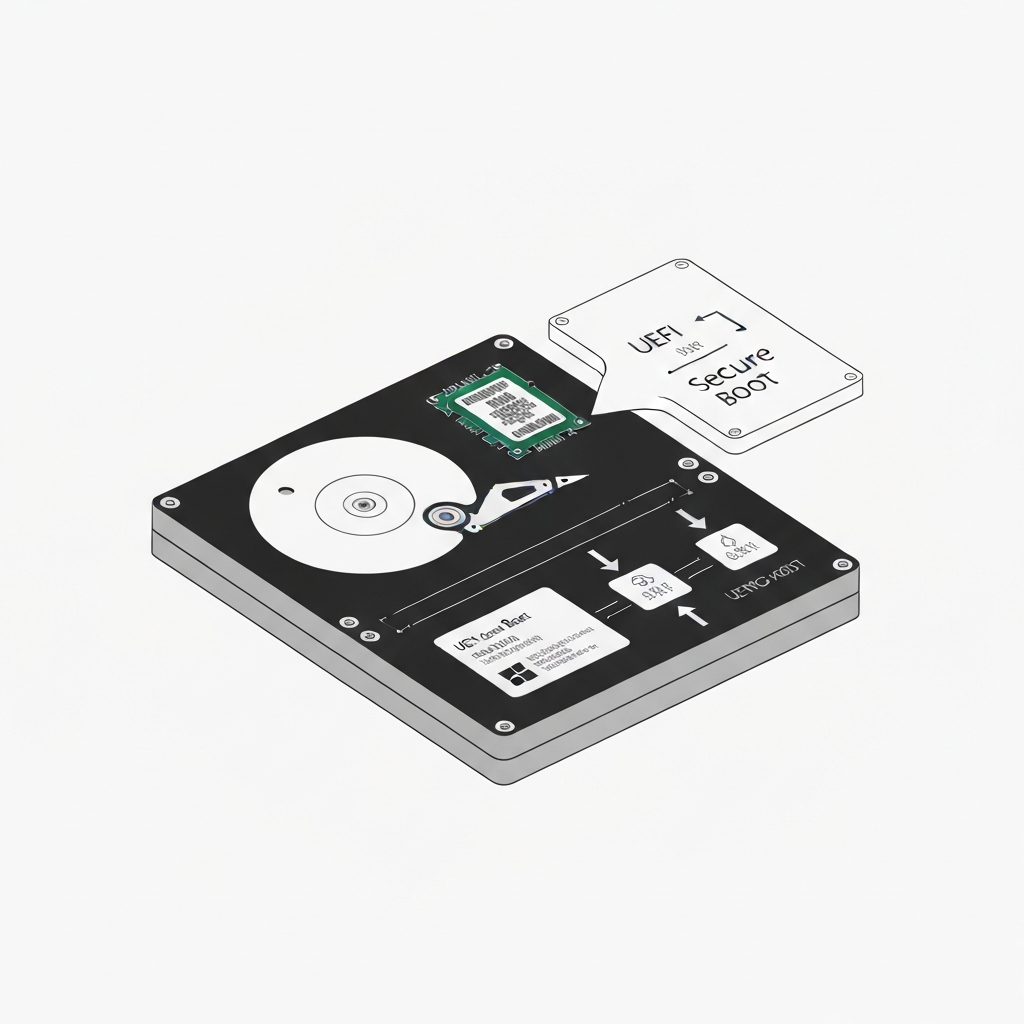
2. Key Components and How Secure Boot Works
Understanding the underlying mechanisms of Secure Boot requires familiarity with its key components. These components work together to establish a chain of trust, ensuring that only authorized software can run during the boot process. Let's examine each of these components in more detail.
- Platform Key (PK): This is the ultimate root of trust in the Secure Boot system. The PK is a cryptographic key that is enrolled in the UEFI firmware during manufacturing. It's used to sign the Key Exchange Key (KEK). Only the entity that controls the PK can update the KEK or disable Secure Boot. Think of the PK as the master key that governs the entire Secure Boot process.
- Key Exchange Key (KEK): The KEK is used to update the database of authorized signatures (db) and the database of forbidden signatures (dbx). This allows for the addition of new trusted bootloaders, OS kernels, and UEFI drivers, as well as the revocation of compromised or malicious ones. The KEK acts as an intermediary, allowing for more flexible management of trusted and untrusted components without requiring direct manipulation of the PK. For example, Microsoft uses its KEK to sign Windows bootloaders, allowing Windows to boot on systems with Secure Boot enabled.
- Authorized Signatures Database (db): This database contains the digital signatures or hashes of trusted bootloaders, OS kernels, and UEFI drivers. If a component's signature is present in the db, it is allowed to execute. The db is essentially a whitelist of authorized software. Operating system vendors and hardware manufacturers populate this database with the signatures of their respective components.
- Forbidden Signatures Database (dbx): This database contains the digital signatures or hashes of known malicious or vulnerable bootloaders, OS kernels, and UEFI drivers. If a component's signature is present in the dbx, it is blocked from executing, even if its signature is also present in the db. The dbx acts as a blacklist, preventing the execution of known threats. Regular updates to the dbx are crucial for maintaining the effectiveness of Secure Boot against evolving malware.
3. Benefits and Potential Drawbacks
Secure Boot enhances system security by preventing unauthorized software from running during startup, but it can also create challenges for users who want to customize their systems.
The primary benefit of Secure Boot is enhanced system security. By preventing the execution of unsigned or untrusted code during the boot process, Secure Boot significantly reduces the risk of boot-level malware infections. This is especially important in environments where systems are vulnerable to physical attacks or tampering, such as public kiosks or unattended servers. Secure Boot acts as a critical line of defense, preventing malicious actors from gaining control of the system before the operating system even loads.
However, Secure Boot also has potential drawbacks. One common concern is that it can restrict users' ability to install alternative operating systems, such as Linux distributions, or to use custom bootloaders. This is because Secure Boot requires that all boot components be digitally signed with a trusted key, and many open-source operating systems and custom bootloaders are not signed by default. While it is often possible to disable Secure Boot or to enroll custom keys, this can be a complex process that requires technical expertise. Furthermore, disabling Secure Boot can reduce the system's security posture, making it more vulnerable to attack. Another drawback is the potential for compatibility issues with older hardware or software. Some legacy devices or applications may not be compatible with Secure Boot, requiring users to disable the feature in order to use them.
In summary, Secure Boot offers a valuable security benefit by protecting against boot-level malware. However, it also presents potential challenges for users who require flexibility in their choice of operating systems or bootloaders. When deciding whether to enable or disable Secure Boot, it's important to weigh the security benefits against the potential drawbacks and to consider the specific needs of the system and the user.
Conclusion
UEFI Secure Boot represents a significant advancement in system security, offering a robust defense against boot-level malware attacks. By ensuring that only trusted software can execute during the startup process, Secure Boot provides a critical layer of protection that complements other security measures. However, it is essential to understand its limitations and potential drawbacks, such as restrictions on installing alternative operating systems and compatibility issues with older hardware or software.
As technology continues to evolve, Secure Boot is likely to become an increasingly important security feature. Future trends may include tighter integration with cloud-based security services, enhanced support for virtualization and containerization, and improved mechanisms for managing and updating Secure Boot keys. Staying informed about these developments is crucial for ensuring that your systems remain secure in the face of emerging threats. Ultimately, the decision of whether to enable or disable Secure Boot should be based on a careful assessment of the security risks, the user's needs, and the specific requirements of the system.
❓ Frequently Asked Questions (FAQ)
Can I disable Secure Boot?
Yes, in most cases, you can disable Secure Boot through the UEFI firmware settings. However, the process for doing so varies depending on the motherboard manufacturer. Typically, you will need to access the UEFI setup utility by pressing a specific key (such as Del, F2, or F12) during startup. Once in the UEFI setup, look for a setting related to Secure Boot and disable it. Keep in mind that disabling Secure Boot may reduce your system's security posture.
Will Secure Boot prevent all malware?
No, Secure Boot is not a foolproof solution against all types of malware. It specifically targets malware that attempts to infect the boot process. However, it does not protect against malware that runs within the operating system after it has loaded. Therefore, it's essential to use Secure Boot in conjunction with other security measures, such as antivirus software, firewalls, and regular security updates, to provide comprehensive protection against a wide range of threats. Relying solely on Secure Boot can create a false sense of security.
How do I know if Secure Boot is enabled?
You can check if Secure Boot is enabled through your operating system. In Windows, you can do this by opening System Information (search for "msinfo32.exe") and looking for the "Secure Boot State" entry. If it says "Enabled," then Secure Boot is active. In Linux, you can check by running the command `mokutil --sb-state` in a terminal. If Secure Boot is enabled, it will report that Secure Boot is enabled; otherwise, it will report that it is disabled. Knowing the status of Secure Boot is crucial for troubleshooting boot-related issues.
Tags: #UEFI #SecureBoot #Cybersecurity #BootProcess #SystemSecurity #Firmware #Technology