📖 5 min read
In the realm of computer maintenance, disk defragmentation stands as a vital process often overlooked but undeniably crucial for sustained performance. As data is written, deleted, and modified on a hard disk drive (HDD), it tends to become fragmented, scattering pieces of files across different physical locations on the disk. This fragmentation leads to increased read/write head movement, resulting in slower access times and a noticeable degradation in overall system responsiveness. Understanding the intricacies of disk defragmentation, its underlying mechanisms, and its potential benefits empowers users to optimize their systems for peak efficiency. This comprehensive guide will explore the nuances of defragmentation, offering practical insights and best practices to ensure a smoother and more efficient computing experience. Regularly employing defragmentation techniques can significantly extend the lifespan and improve the performance of your HDD.
1. Understanding Disk Fragmentation
Disk fragmentation is a natural consequence of how HDDs store and manage data. When a file is initially written to a disk, it ideally occupies contiguous sectors, allowing for fast and efficient access. However, as files are deleted, gaps are created, and subsequent files may be written into these fragmented spaces. This results in files being split into multiple non-contiguous pieces scattered across the disk, a state known as fragmentation. The more fragmented a disk becomes, the longer it takes for the read/write head to access all the parts of a file, leading to performance bottlenecks.
To illustrate, consider a scenario where you have a large document split into 100 fragments spread randomly across the disk. When you open the document, the HDD's read/write head must physically move to each of these 100 locations to retrieve all the necessary data. This process consumes significantly more time compared to accessing a contiguous file, where the head can read all the data in a single, sequential sweep. Over time, as more files are created, deleted, and modified, the level of fragmentation increases, further exacerbating the performance slowdown.
The implications of disk fragmentation extend beyond just slower file access times. It can also lead to increased wear and tear on the HDD as the read/write head is forced to move more frequently and over longer distances. This increased mechanical activity can reduce the lifespan of the drive and potentially lead to data loss in the long run. Therefore, regular defragmentation is essential to mitigate these negative effects and maintain optimal system health and performance. The operating system's built-in defragmentation tool or third-party utilities can be used to consolidate fragmented files and improve overall system responsiveness.
2. The Defragmentation Process Explained
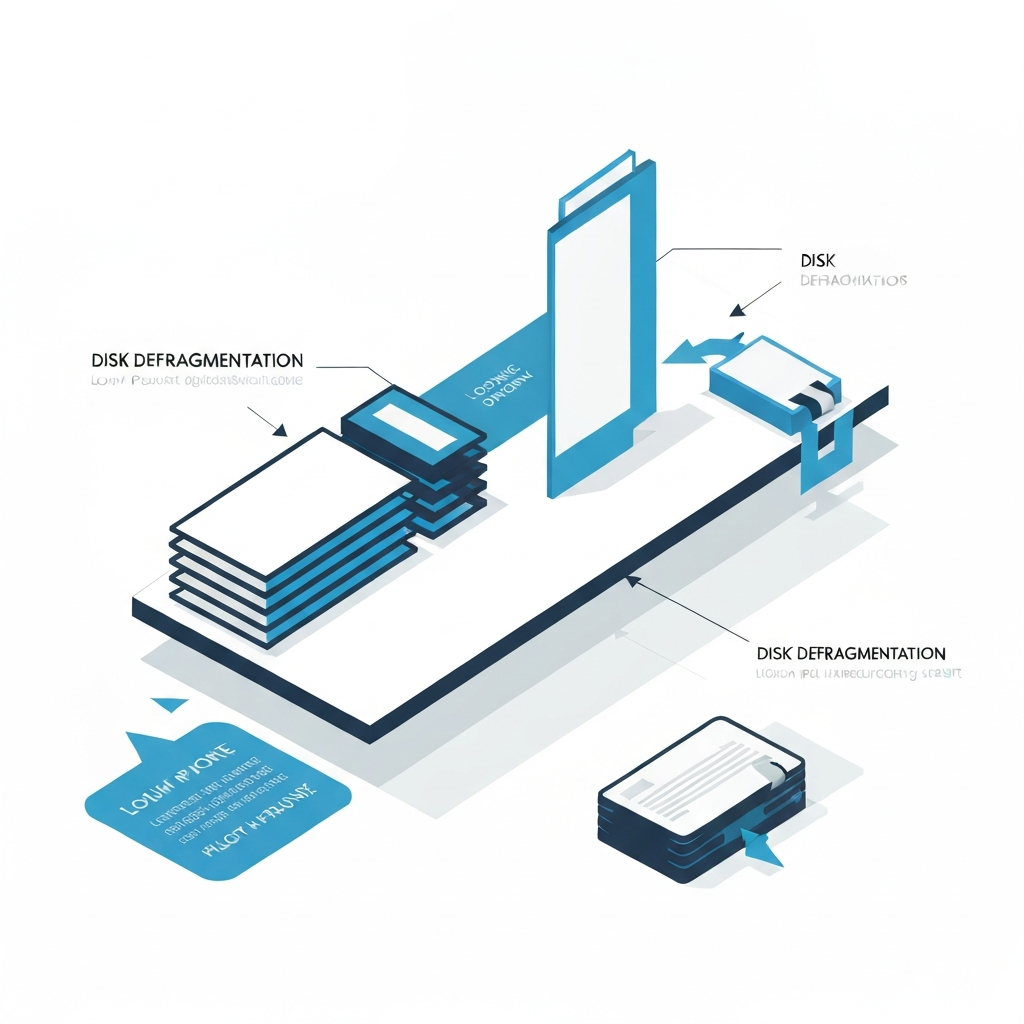
Defragmentation is the process of reorganizing data on a hard disk to store file pieces in contiguous locations, thereby reducing fragmentation and improving access times. It works by identifying fragmented files, analyzing their locations on the disk, and then moving the fragments to consolidate them into contiguous blocks. This process involves reading the fragmented data from its scattered locations and writing it back to the disk in a more organized manner. Modern defragmentation tools employ sophisticated algorithms to optimize the placement of files, prioritizing frequently accessed files and directories to minimize access times.
- Analysis Phase: The defragmentation tool begins by analyzing the disk to identify fragmented files and the extent of fragmentation. This analysis provides a detailed map of the disk's data layout, highlighting the areas where files are scattered across non-contiguous sectors. The tool also assesses the overall health of the disk and identifies any potential issues that might hinder the defragmentation process. This phase is crucial for determining the optimal strategy for defragmenting the disk and ensuring that the process is carried out efficiently and effectively.
- Consolidation Phase: Once the analysis is complete, the tool proceeds to consolidate the fragmented files. This involves reading the scattered fragments of each file and writing them back to the disk in contiguous locations. The tool carefully manages the available free space to ensure that files are placed in optimal positions. It also prioritizes frequently accessed files and directories, placing them in faster areas of the disk to minimize access times. This phase is the most time-consuming part of the defragmentation process, as it involves significant read/write activity on the disk.
- Optimization Phase: After the files have been consolidated, the defragmentation tool may perform additional optimization steps to further improve performance. This can include consolidating free space, moving frequently accessed files to the outer tracks of the disk (which offer faster access times), and optimizing the placement of system files. These optimization steps are designed to maximize the efficiency of the disk and ensure that the system operates at peak performance. The optimization phase can significantly enhance the overall responsiveness of the system and improve the user experience.
3. Best Practices for Effective Defragmentation
Defragmentation is most effective when performed regularly and when the disk is not excessively full. Aim for at least 15-20% free space on your hard drive for optimal results.
Regular defragmentation is crucial for maintaining optimal disk performance. The frequency of defragmentation depends on the usage patterns of the computer. For computers that are used heavily for file creation, deletion, and modification, weekly or bi-weekly defragmentation is recommended. For computers with lighter usage, monthly defragmentation may suffice. Scheduling defragmentation tasks during off-peak hours ensures that the process does not interfere with normal computer usage. Consistent defragmentation prevents excessive fragmentation from accumulating and helps maintain a smooth and responsive system.
Before initiating defragmentation, it's essential to close all running applications and disable any background processes that may access the disk. This ensures that the defragmentation process can proceed smoothly without interruption. Programs that are actively writing to or reading from the disk can interfere with the defragmentation process and potentially lead to data corruption. Temporarily disabling antivirus software and other disk-intensive applications can also help speed up the defragmentation process. Taking these precautions minimizes the risk of errors and ensures that the defragmentation process is completed successfully.
It is important to understand that defragmentation is primarily beneficial for traditional hard disk drives (HDDs). Solid-state drives (SSDs) utilize a different storage mechanism that does not suffer from the same fragmentation issues as HDDs. In fact, defragmenting an SSD can actually reduce its lifespan by causing unnecessary write cycles. Most modern operating systems automatically detect whether a drive is an HDD or an SSD and disable defragmentation for SSDs. Therefore, it is crucial to avoid manually defragmenting SSDs to prevent premature wear and tear. Understanding the difference between HDDs and SSDs and their respective maintenance requirements is essential for ensuring optimal system performance and longevity.
🔗 Recommended Reading
Conclusion
Mastering disk defragmentation processes is paramount for maintaining optimal computer performance and extending the lifespan of hard disk drives. By understanding the underlying mechanisms of fragmentation, the benefits of defragmentation, and the best practices for implementation, users can proactively address performance bottlenecks and ensure a smooth and efficient computing experience. Regular defragmentation, coupled with proper disk maintenance, can significantly improve system responsiveness and prevent performance degradation over time. This proactive approach to system maintenance is essential for maximizing the value and longevity of computer hardware.
While defragmentation remains a critical process for HDDs, the advent of solid-state drives (SSDs) has introduced new considerations. As SSDs become increasingly prevalent, understanding their unique characteristics and maintenance requirements is crucial. The future of storage technology likely involves a hybrid approach, combining the high capacity of HDDs with the speed and efficiency of SSDs. Staying informed about these evolving trends and adapting maintenance practices accordingly will be key to ensuring optimal system performance in the years to come.
❓ Frequently Asked Questions (FAQ)
How often should I defragment my hard drive?
The frequency of defragmentation depends on your computer usage patterns. If you frequently create, delete, and modify files, defragmenting your hard drive weekly or bi-weekly is recommended to maintain optimal performance. For lighter usage, monthly defragmentation may suffice. You can also use your operating system's built-in scheduling tool to automate the defragmentation process during off-peak hours.
Can defragmentation damage my hard drive?
Defragmentation itself is not inherently damaging to a hard drive, but it does involve a significant amount of read/write activity. While this activity can contribute to wear and tear over time, the benefits of improved performance generally outweigh the potential risks. It's crucial to ensure that the defragmentation tool is reliable and that the process is not interrupted, as interruptions can potentially lead to data corruption. Also, avoid defragmenting solid-state drives (SSDs) as it provides no benefit and can reduce their lifespan.
What should I do if defragmentation is taking too long?
If defragmentation is taking an excessively long time, there are several steps you can take to address the issue. First, ensure that all other applications are closed and that no background processes are actively accessing the disk. Next, check the amount of free space on the hard drive, as defragmentation requires sufficient free space to move files around. If the disk is nearly full, consider freeing up some space by deleting unnecessary files or moving them to an external storage device. Finally, consider using a different defragmentation tool, as some tools are more efficient than others.
Tags: #DiskDefragmentation #ComputerMaintenance #HDD #SSD #SystemOptimization #TechTips #PCPerformance