📖 5 min read
In today's interconnected world, our online activities leave digital footprints in the form of browser history. This record, while convenient for revisiting websites, also raises significant privacy concerns. Understanding and managing your browser history privacy settings is crucial for protecting your personal information from unwanted access and maintaining control over your online identity. This comprehensive guide will delve into the intricacies of browser history, exploring its implications and providing practical steps to enhance your privacy. We will explore the different levels of privacy control available, from basic clearing techniques to advanced configurations, empowering you to navigate the internet with confidence and security.
1. Understanding Browser History and Its Implications
Browser history is a log of websites you have visited, stored locally on your device. This record typically includes website URLs, page titles, timestamps, and cached data like images and scripts. While designed to improve browsing convenience by enabling quick access to previously visited sites and pre-loading content, browser history presents a potential privacy risk. Anyone with access to your device can view your browsing history, potentially revealing sensitive information about your interests, habits, and even personal beliefs.
The implications of unrestricted access to browser history extend beyond mere curiosity. Consider a shared computer in a household or a public device in a library. In these scenarios, your browsing history becomes vulnerable to exposure. Furthermore, browser history can be used for targeted advertising, where companies track your online activity to create personalized ads. While some may find these ads helpful, others view them as an intrusion on their privacy. For instance, if you research medical conditions online, targeted ads for medications or treatments might appear, potentially revealing sensitive health information to others using your device.
Therefore, taking control of your browser history privacy settings is paramount. By understanding the scope of the information stored and the potential risks involved, you can proactively manage your digital footprint. This includes regularly clearing your browser history, utilizing private browsing modes, and adjusting browser settings to limit data collection. Ignoring these precautions can leave you vulnerable to privacy breaches and unwanted tracking, impacting your online experience and potentially compromising your personal information.
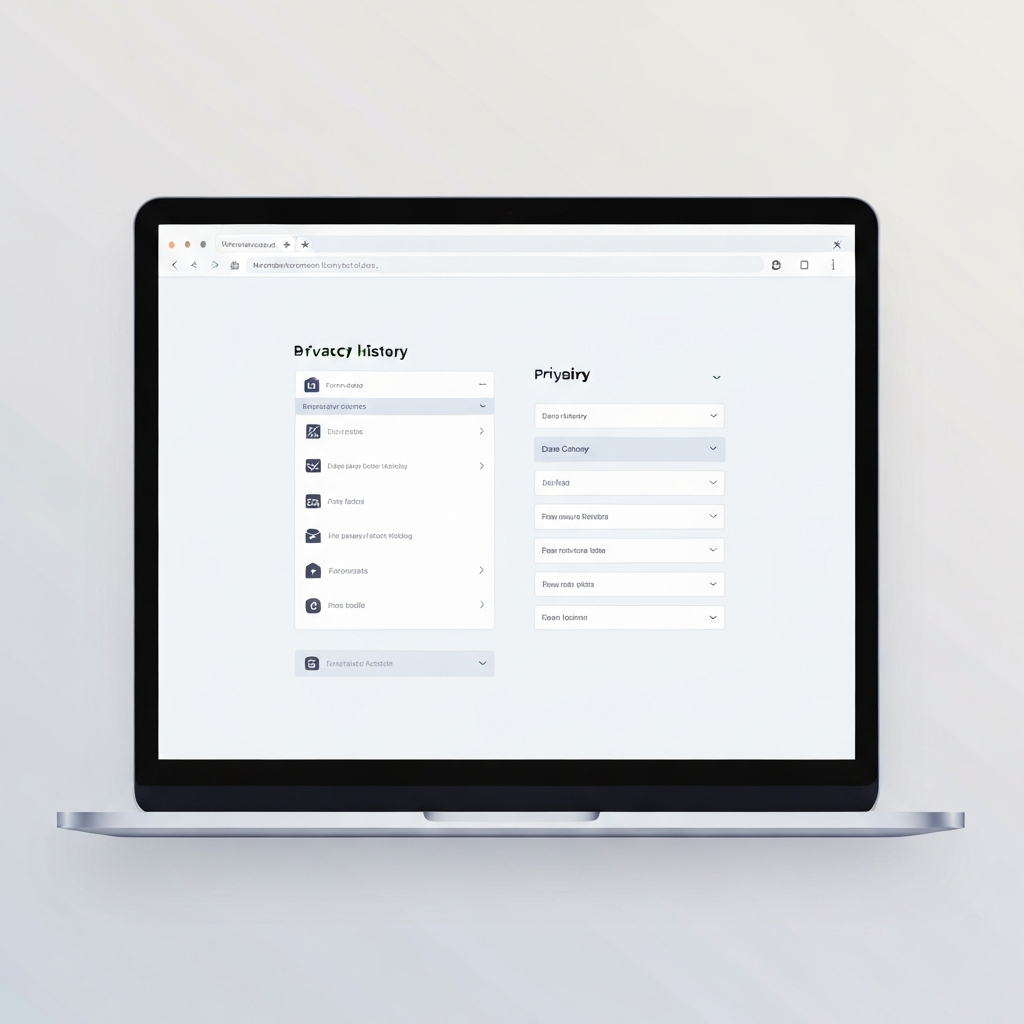
2. Key Privacy Settings to Control in Your Browser
Modern web browsers offer a range of privacy settings designed to help you manage your browsing data and protect your privacy. Understanding these settings and configuring them appropriately is crucial for maintaining control over your online experience. These settings vary slightly between different browsers, but the core functionalities remain consistent.
- Clearing Browsing Data: This is the most basic and fundamental privacy setting. Clearing your browsing data involves deleting your browsing history, cookies, cached images and files, saved passwords, and other site data. Regularly clearing this data prevents others from seeing your browsing activity and can also improve browser performance. You can typically find this option in your browser's settings under "Privacy" or "History". When clearing data, you can select a time range, such as the last hour, day, week, or all time.
- Private Browsing Mode: Most browsers offer a private browsing mode (e.g., Incognito mode in Chrome, Private Window in Firefox, InPrivate Browsing in Edge). When using private browsing, your browser does not save your browsing history, cookies, or site data. This is useful for browsing sensitive websites or when using a shared computer. However, it's important to note that private browsing does not make you completely anonymous online. Your internet service provider (ISP) and the websites you visit can still track your activity.
- Cookie Management: Cookies are small text files that websites store on your computer to remember your preferences and track your activity. While some cookies are essential for website functionality, others are used for tracking and advertising. You can manage cookies in your browser settings by blocking third-party cookies, clearing cookies regularly, or using a cookie manager extension. Blocking third-party cookies can significantly reduce tracking, as these cookies are often used by advertising networks to track your activity across multiple websites.
3. Advanced Techniques for Enhancing Browser Privacy
Pro Tip: Use a privacy-focused browser extension like Privacy Badger or uBlock Origin to automatically block trackers and unwanted content, enhancing your browsing experience and significantly improving your online privacy.
Beyond the basic privacy settings, several advanced techniques can further enhance your browser privacy. These techniques involve using browser extensions, configuring DNS settings, and employing virtual private networks (VPNs). While they require a bit more technical knowledge, the added privacy benefits are substantial for users particularly concerned about online tracking and data security.
Browser extensions like Privacy Badger and uBlock Origin automatically block trackers, advertisements, and other unwanted content. These extensions use a combination of filter lists and behavioral analysis to identify and block tracking scripts, significantly reducing the amount of data collected about your browsing activity. Configuring your DNS settings to use a privacy-focused DNS provider like Cloudflare or Quad9 can also improve your privacy. These providers do not log your DNS queries, preventing your ISP from tracking the websites you visit. Furthermore, using a VPN encrypts your internet traffic and masks your IP address, making it more difficult for websites and trackers to identify your location and activity.
Implementing these advanced techniques provides a multi-layered approach to browser privacy. By combining browser extensions, DNS configuration, and VPN usage, you can create a robust defense against online tracking and data collection. This not only protects your personal information but also enhances your browsing experience by reducing distractions and improving website loading times. While each technique offers individual benefits, their combined effect provides a comprehensive shield against privacy intrusions.
🔗 Recommended Reading
20260324-Online-Course-Creation-Guide-A-Comprehensive-Roadmap
Conclusion
Mastering browser history privacy settings is no longer a luxury but a necessity in the modern digital age. By understanding the implications of browsing history and taking proactive steps to manage your online data, you can significantly enhance your privacy and security. The journey begins with simple steps like regularly clearing your browsing data and utilizing private browsing modes when handling sensitive information.
As technology continues to evolve, so will the methods of tracking and data collection. Staying informed about the latest privacy threats and adapting your browser settings accordingly is crucial. Embracing privacy-focused tools and techniques, such as browser extensions and VPNs, can provide an additional layer of protection. By prioritizing your browser history privacy, you are empowering yourself to navigate the internet with confidence, knowing that you are in control of your digital footprint.
❓ Frequently Asked Questions (FAQ)
Does clearing my browser history delete everything?
No, clearing your browser history typically removes your browsing history (list of visited websites), cookies, cached images and files, and potentially saved passwords, depending on the options you select. However, it does not affect your account logins or data stored on websites themselves. For example, if you are logged into your email account, clearing your browser history will not log you out unless you specifically choose to clear cookies. It's important to review the specific options in your browser's settings to understand exactly what data will be removed.
Is private browsing mode completely anonymous?
No, private browsing mode is not completely anonymous. While it prevents your browser from saving your browsing history, cookies, and site data locally, it does not hide your activity from your internet service provider (ISP), your employer (if you are using a work network), or the websites you visit. Websites can still track your IP address and other information to identify you. For true anonymity, you should use a VPN or Tor network in conjunction with private browsing mode.
How often should I clear my browser history?
The frequency with which you should clear your browser history depends on your personal privacy preferences and usage habits. If you frequently browse sensitive websites or share your device with others, you may want to clear your history daily or even after each browsing session. If you are less concerned about privacy, you can clear your history less frequently, such as weekly or monthly. Regularly clearing your history can also improve your browser's performance by removing accumulated cached data and cookies, even if privacy isn't a major concern. Consider setting a recurring reminder to clear your browsing data to maintain a consistent privacy routine.
Tags: #BrowserPrivacy #PrivacySettings #InternetSecurity #DataProtection #OnlineSafety #DigitalPrivacy #WebSecurity